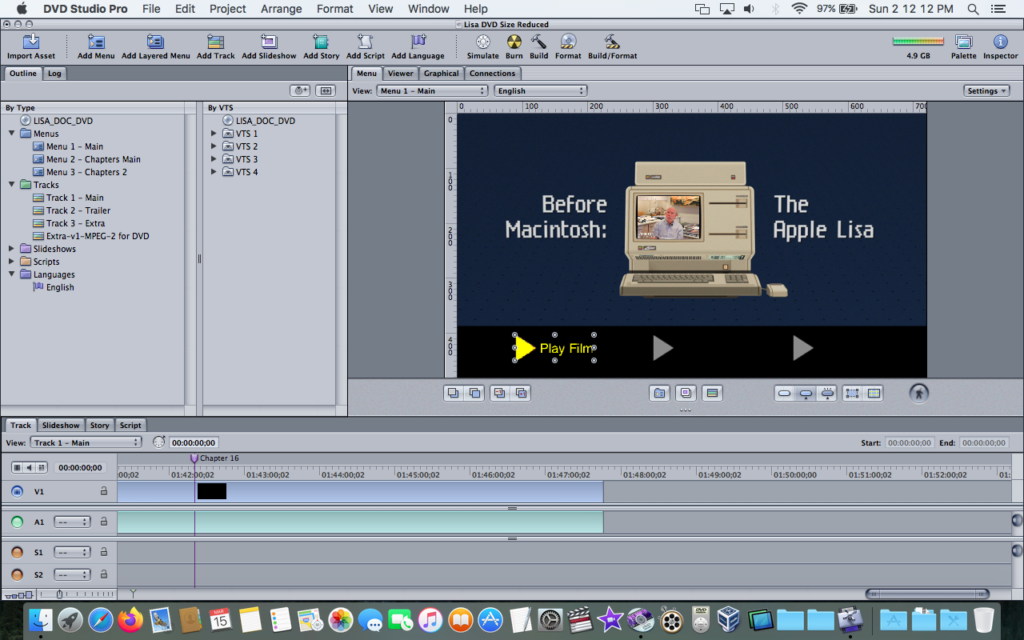
Apple’s DVD Studio Pro software was something I dreamed of having back in the day. While iDVD was great, I ran into bugs and issues when using certain menus or templates. Years later I finally had DVD Studio Pro set up on my 2011 27-inch iMac, I used it for many home movie projects and it worked quite well. A few years back I found myself once again setting up DVD Studio Pro 4, this time on my MacBook Pro 13″ (Late 2011), to design and create the special DVD release of Before Macintosh: The Apple Lisa.

Recently I used a hacked Kodak 8mm film digitizer to preserve our family’s 8mm home movies. One of my family members doesn’t have a computer, so I thought creating a DVD of these movies would be the best option for sharing these movies with them. So I pulled out my trusty Intel MacBook Pro once again to create a DVD… but I wondered something…
Could I use my speedy M-series Apple Silicon Mac to render the required MPEG-2 video files for DVD Studio Pro?
In the past I simply encoded the source video files into DVD Studio Pro compatible files using Compressor 3.5 on the same MacBook Pro (Late 2011) or my Mac Pro (2012). Although this was loads faster than my original iDVD workflow (on a 450MHz Power Mac G4) I’d love to streamline the process further.
Unsurprisingly, there aren’t any DVD Studio Pro MPEG-2 profiles built into the latest version of Compressor (version 5.0 as of this writing). However, there were generic MPEG-2 presets, could those work?
In short – yes!
However, if you use one of Compressor 5’s default MPEG-2 presets and don’t fiddle with the options, you’ll get an error when you try to add them to DVD Studio Pro. But after a lot of fiddling and trial and error I finally cracked it.
Basically there are two settings you must change from these default MPEG-2 presets to make them compatible with DVD Studio Pro. I dive into the specifics below, but this involves changing options under the “General” tab, such as the format to “Elementary Stream” and the stream usage to “DVD”. These will result in proper .mv2 (not .mpeg) files for DVD Studio Pro.

Here are the MPEG-2 Compressor 5 settings that worked for me:
- Open Compressor 5.0
- Expand the “MPEG-2 Files” preset folder in the left panel.
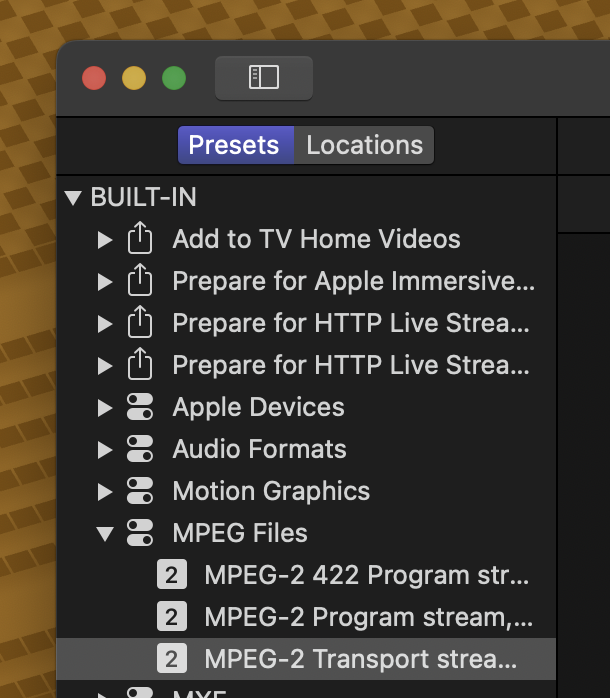
- Select “MPEG-2 Transport stream” and drag it to your video clip in your current batch window in Compressor.
- Now in the Compressor batch window, select the “MPEG-2 Transport…” name, the item will be selected with a gray highlight.

- Show the Inspector if it’s not already visible. If it’s hidden, show it by typing Command (Apple) + 4, or toggle the show/hide button on the top right of the window.
- In the Inspector, under the General tab we’ll need to change two settings from their default values to the following values:
- Format: Elementary Stream
- Stream usage: DVD
- You can optionally enable “Include chapter markers only” and other settings if you wish.

- Now under the Video tab you’ll want to make some adjustments to fine tune the quality of the video file being used for your DVD project. You can adjust these settings to meet your needs. I’ve included some preset details from DVD Studio Pro in the next step that can be handy to know.
Pay careful attention to the frame size, the anamorphic (aspect), encoding mode, average bit rate, and maximum bit rate. The default settings usually work, but if the frame size is over what DVD Studio Pro expects it will refuse the file.

- For reference, here are the three “Best Quality” presets that Compressor 3.5 had that were designed for DVD Studio Pro. These are a good guide to follow to get the best quality files onto a DVD disc. The video lengths here are all based on a standard single-layer DVD-5 disc (4.7 GB).
- Best Quality (90 minutes max length)
- Up to 90 minutes of video if using Dolby Digital audio at 192 Kbps or 60 minutes with AIFF audio on a DVD-5 disc.
- MPEG-2 @ 6.2 Mbps, 2-pass
- Best Quality (120 minutes max length)
- Up to 120 minutes of video if using Dolby Digital audio at 192 Kbps or 90 minutes with AIFF audio on a DVD-5 disc.
- MPEG-2 @ 5.0 Mbps, 2-pass
- Best Quality (150 minutes max length)
- Up to 150 minutes of video if using Dolby Digital audio at 192 Kbps or 120 minutes with AIFF audio on a DVD-5 disc.
- MPEG-2 @ 3.7 Mbps, 2-pass
- Best Quality (90 minutes max length)

6. Once you’ve configured your settings hit the “Start Batch” button and watch that progress bar fly! Be sure to check the “Completed” tab after things finish to ensure the encode didn’t fail, as Compressor likes to fail silently sometimes. Now you can build a DVD in DVD Studio Pro without making your poor intel Mac sweat too much while encoding video files.
An aside: I’ve had Compressor fail on video exports due to a source video file having a glitch in a few frames. Final Cut Pro and QuickTime would play them fine, but exporting jobs with them using Compressor would cause them to fail. Final Cut Pro would also fail to export them too. Sadly, they didn’t provide me with any helpful error messages. I eventually learned that the source video files were to blame. The solution was to edit or trim out any glitched frames (where were caused by the weird way the hacked Kodak digitizer creates video files) and then everything worked fine.
